GLG 4.6 Release: New Features and Enhancements
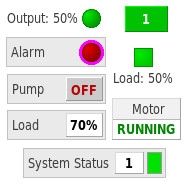
Digital and Analog Indicator Widgets with User-Configurable
Blinking Alarms
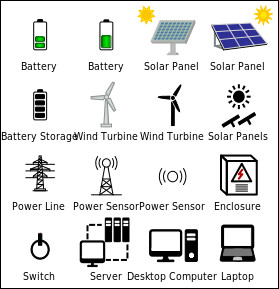
Power Diagram Symbols
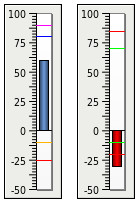
Floating Bar Indicators
Core New Features
New Product:
GLG Data Gateway: Data Connectivity for Mission-Critical HMI
The new GLG family product, GLG Data Gateway, is a data and message
distribution library for SCADA and HMI projects. It is a
high-performance light-weight solution for distributing data from
a central server to multiple C/C++, C#, or Java clients. It
ensures reliable, secure communication with automatic fault
recovery and built-in data serialization/deserialization for
efficient network messaging. With optional CURVE-based
encryption, comprehensive configuration, logging, statistics and
troubleshooting tools, it is ideal for secure, real-time, cross-platform
data exchange.
The updated SCADAViewer and SimpleViewer source code
examples demonstrate how to integrate the Data Gateway into an HMI
application and include options for using a remote data server. They cover
how to configure a remote server connections, retrieve real-time data, and
execute commands -- such as write operations and alarm acknowledgments —-
directly from user input.
The GLG installation provides C, C++, C#, and Java versions of the
examples, along with standalone samples for using the Data Gateway
independently of the GLG Toolkit.
More Details
on Data Gateway Functionality
Multi-Plot Chart Tooltips
All new charts now default to multi-plot tooltips, displaying data from
every plot at the cursor's X-axis position. This makes it easier to
perform side-by-side comparisons. You can toggle between multi-plot and
single-plot views using the chart's TooltipMode attribute.
As you move the crosshair cursor across a chart, the nearest data points
are also automatically highlighted. Depending on the TooltipMode
setting, this will highlight either a single plot point or the
corresponding points across all active plots simultaneously.
Using Wildcards for Setting Tags and Resources
Functions that set resource or tags values (i.e. all variants of the
SetTags and SetResource functions) now support * and ?
wildcards for pattern matching. The asterisk (*) matches any sequence of
characters, and the question mark (?) matches any single character.
To enable wildcard matching, prefix the resource or tag name with "$!".
For example, "$!Clear*" will target all tags with names beginning with
"Clear".
When using wildcards in resource paths, the wildcards prefix must be
added to each level of resource hierarchy where pattern matching is
required. For example, the following string targets all nested elements
with names beginning with "Element" inside parent objects with names
beginning with "Group":
$!Group*/$!Element*/LineWidth
NOTE: Wildcards can only be used for matching named object
resources; they cannot be used for matching default attribute names
(e.g. LineWidth, FillColor).
Developer & API Improvements
Unified Hierarchy Callback for Main Viewport and Templates
Previously, the Hierarchy callback was used to initialize
instances of subdrawing and subwindow templates during loading (as seen in
the SCADAViewer example). While effective for processing custom
widgets and other special objects within sub-templates, this callback did
not handle the special objects loaded directly into the main viewport.
To provide a unified approach for handling special objects, the
Hierarchy callback is now triggered for the main viewport as
well. This creates a unified initialization process, eliminating the
need for conditional logic and allowing developers to use a single,
consistent process for all drawings regardless of their destination.
When the Hierarchy callback is invoked for the main viewport, the
GlgHierarchyCBStruct structure passed to the callback will have
reference_type set to GLG_UNDEFINED_REF_TYPE and subobject set to
NULL. A new object_type field will be set to either GLG_VIEWPORT or
GLG_REFERENCE, depending on the type of object being processed.
Because Hierarchy callback logic typically depends on the
reference_type setting, most existing code will function correctly after
a simple recompilation. For backward compatibility, the
GlgCompatibilityMode global configuration resource can be set to
GLG_PRE_4_6 to disable callback invocation for the main viewport.
The SCADAViewer example source code has been refactored to utilize
a new Hierarchy callback logic to reduce code complexity and
improve maintainability.
Improved Handling of Consecutive Actions
When an object contains multiple actions in its action list, later
actions often depend on the results of previous ones. Previously, if a
subsequent action used a transformation, it might use outdated values
unless GlgSetupHierarchy was called manually. In the new release,
actions are automatically set up before execution, ensuring that any
changes to transformation parameters from previous actions are immediately
available to all following actions.
Action Object Subaction Attribute
The Input Action Object dialog now includes a field for the
InputSubaction attribute. This new attribute allows for more
precise control over complex input actions.
New API Functions
- A new function, GlgCreateResourcePath, has been added to the
GLG Intermediate API. This function generates a relative resource path
for accessing an object as a resource of its parent. Its usage is
demonstrated in the updated SCADAViewer example.
- The GlgGetExePath C/C++ function is now available on both
Windows and Linux/Unix, eliminating the need for platform-specific code
to locate the program's executable.
- The LoadAsset JavaScript function now includes optional
username and password parameters. When provided, these credentials are
used for HTTP Basic Authentication. The browser automatically
Base64-encodes the credentials and includes them in the Authorization
header, which prevents native browser login prompts. For security,
ensure credentials are not hardcoded as literal strings and that HTTPS
is used to protect them during transit.
Chart Annotation Trimming
To improve XY Scatter Chart support, programmatic annotations are now
trimmed in sync with data samples based on the chart's BufferSize.
For scrolling charts, trimming is also managed by the BufferXSpan
attribute. The GlgClearDataBuffer function has been updated to
flush both data and annotations simultaneously.
GLG Script Command for Adding Aliases
The new add_alias script command can be used to add an alias
object. Additional consistency checks have been added for both
add_alias and add_custom_property commands.
New Coding Examples
New Qt, WPF and MFC Integration Examples
The Qt and MFC versions of the SimpleViewer and SCADAViewer
examples are included in this release. These examples share the majority
of their code with the straight C/C++ versions, but provide Qt- and
MFC-specific wrappers to integrate the viewers into their respective
environments.
The new WPF integration example demonstrates how to host a GLG drawing
within a WPF environment using the WindowsFormsHost element and the
GLG C# library.
New Data Browser Example
Two data browser examples are now available: a new simplified version
that displays tags in a flat list (loaded from a file or queried from a
database), and the original hierarchical version that groups tags by
category. These browsers make it easier to populate data tag sources
within the Graphics Builder and HMI Configurator.
Editor Interface Enhancements
New List NumItems Default
Starting with release 4.6, all new List transformations created in the
Graphics Builder include the NumListItems auto-sizing attribute by
default. This attribute allows users to control the number of items in a
list by entering a new attribute value.
For the Enterprise Edition, you can modify this default behavior through
the Options, Enable List NumItems menu option, or
the EnableListNumItems setting in the glg_config file. The
Edit, Xform List NumItems menu option can be used to convert
existing transformations by adding or removing the auto-sizing attribute
as needed.
The presence of this attribute changes how you interact with the
list. When auto-sizing is active, the list length is determined strictly
by the attribute value. If the attribute is removed, you gain manual
control to add, remove, or reorder individual list elements.
Editing Drawing Span in the HMI Configurator
Users can now adjust the drawing span in the HMI Configurator via the
Screen's SpanX and SpanY properties. Additionally, the
KeepEditRatio attribute is now editable; a drawing reset is
required for this change to take effect.
Depending on the KeepEditRatio setting, the HMI Configurator may
adjust a drawing's span to maintain its aspect ratio. Use the new File,
Show Drawing Span menu option to view the real, unadjusted span of the
drawing.
New Configuration Setting:
MakeWidgetViewportsTransparent
A new setting, MakeWidgetViewportsTransparent, has been added to
the configuration files for both the GLG Graphics Builder and the GLG HMI
Configurator. It provides a configurable default state for
the Palettes, Make Widget Viewports Transparent menu option of the
GLG editors.
- Analog value display widgets with an value-based color thresholds and
user-configurable blinking alarm setpoints.
- Digital value display and widgets with state-based color and
user-configurable blinking alarm setpoints.
- Analog and digital indicator widgets with configurable label position
and optional alarm blinking.
- New linear gauges, including floating bar gauges that extend below
the zero-baseline to visualize negative values.
- New palette with power diagram symbols: power line, battery, solar
panel, wind turbine, etc.
- An air damper widget.
- A unified Value resource has been added to all widgets,
allowing for consistent handling across the application code.
- A tag is now added to the Value property of all switch, toggle,
and spinner widget, saving the user the step of adding one.
- All widgets now include WidgetType and IsWidget
properties, enabling dynamic identification and runtime processing based
on widget classification.
- Half-moon dials now have new Orientation property, allowing to
flip the dial.
Bug Fixes
- Fixed slow loading of compressed drawings using the .Net Core version
of the C# library due to a problem in the .Net Core implementation of
the gzip decompression stream.
- Fixed an issue where the Y-axis scrollbar would flicker or jump during
autopan when autoscaling the initial chart values.
- Resolved an issue in the Angular rendering layer where measured text
boxes did not align with rendered text due to measurement discrepancies
between offscreen canvas and onscreen HTML5 canvas elements.
- Resolved the "Unset action object" error encountered when
debugging C# in Visual Studio. The issue occurred because activating a
breakpoint during a dial or slider movement disrupted the expected event
sequence.
